
Guides & Blog
ASIO4ALL Guides, Tutorials and Fixes
24 in-depth ASIO4ALL guides for Windows 10 and 11: download and install the driver, set it up in FL Studio, Ableton Live, Cubase and REAPER, tune buffer size and sample rate, and fix crackling, silence and missing-driver errors.
All guides
Showing 1–9 of 24 guides
-
 Setup
ASIO4ALL Download for Windows 10 and 11
Get ASIO4ALL 2.22 from the publisher, check Windows 10 and 11 compatibility, and confirm the driver appears in your digital audio workstation after setup.
Read guide -
 Setup
How to Install ASIO4ALL on Windows 10 and 11
Install ASIO4ALL on Windows, select ASIO4ALL v2 in your DAW, route a compatible output, and confirm sound before opening your main recording project.
Read guide -
 Audio settings
ASIO4ALL Buffer Size for Recording and Mixing
Set the ASIO4ALL buffer size for tracking and mixing, calculate one buffer’s duration, and identify when the DAW overrides the control panel setting.
Read guide -
 Troubleshooting
ASIO4ALL Not Working? Diagnose the Driver in Order
Find out why ASIO4ALL is missing or fails to start. Test Windows audio, the ASIO host and the WDM device list before changing other settings.
Read guide -
 DAWs
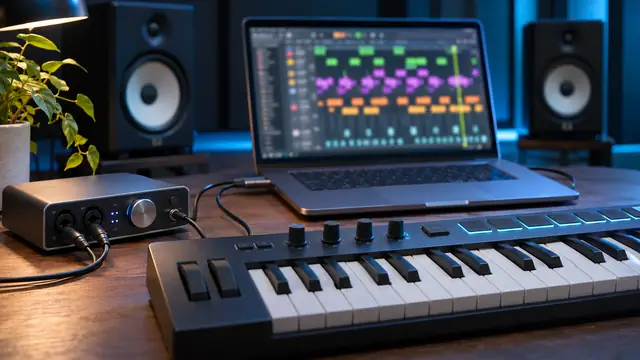
Set up ASIO4ALL in FL Studio on Windows
Set up ASIO4ALL in FL Studio on Windows, connect the right playback device, route a microphone in the Mixer and tune the buffer for recording and playing.
Read guide -
 Releases
ASIO4ALL Version History and Release Notes
Trace ASIO4ALL releases 2.19 through 2.22, from device fixes and USB audio improvements to native Windows on Arm support and configuration changes.
Read guide -
 DAWs
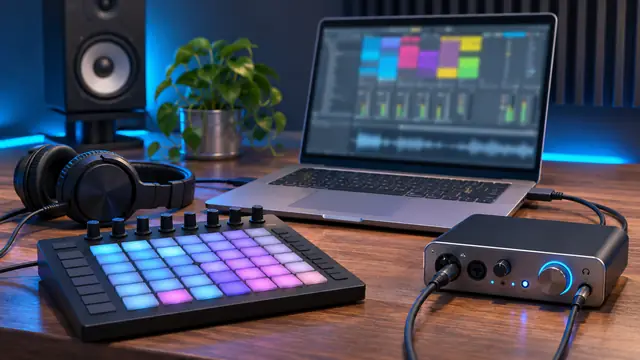
Set up ASIO4ALL in Ableton Live on Windows
Configure ASIO4ALL in Ableton Live, enable the right input and output channels, test Main playback and check monitoring delay in a clean Windows session.
Read guide -
 DAWs
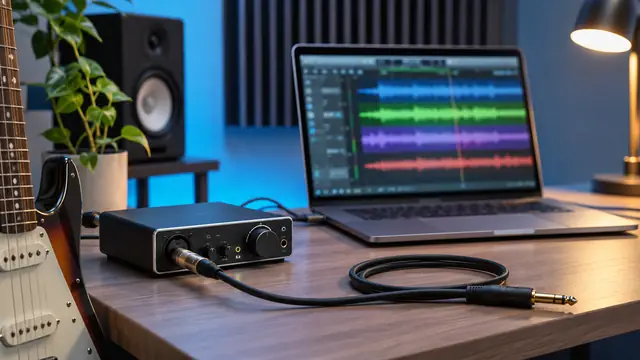
Set up ASIO4ALL in REAPER and record your first take
Use ASIO4ALL v2 in REAPER on Windows, set the input and output ranges, choose which app requests the block size and check a short mono recording.
Read guide -
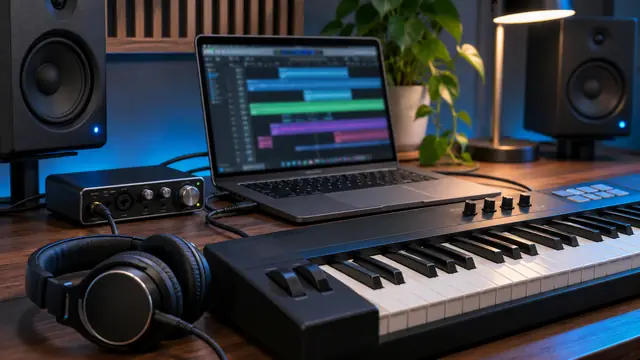 DAWs
Configure ASIO4ALL inputs and outputs in Cubase
Select ASIO4ALL in Cubase on Windows, assign real device ports in Audio Connections and verify playback and recording with a simple project first.
Read guide -
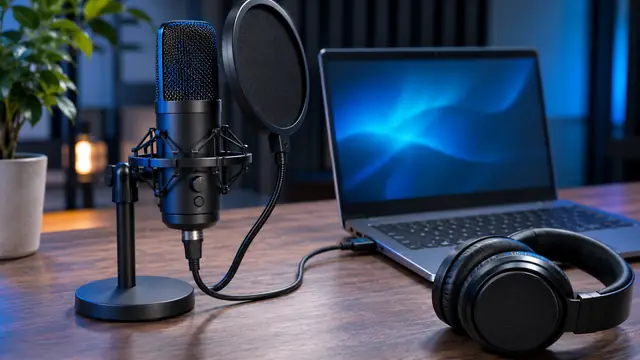 Setup
Use a USB Microphone with ASIO4ALL
Set up a USB microphone with ASIO4ALL on Windows. Confirm the input in Windows, enable it in the ASIO panel and route it to a mono recording track.
Read guide -
 Troubleshooting
Fix No Sound After Selecting ASIO4ALL
Restore playback in your DAW after selecting ASIO4ALL. Check the active output, release devices held by other apps and reconnect your master channels.
Read guide -
 Troubleshooting
Fix ASIO4ALL Crackling, Pops and Dropouts
Troubleshoot ASIO4ALL crackling and dropouts by testing buffer size, DAW load, input gain and device combinations before your next recording session.
Read guide -
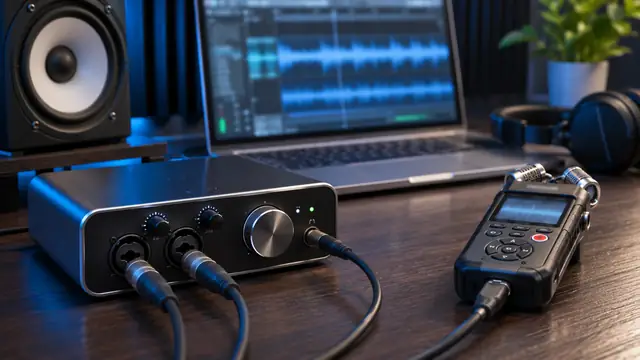 Audio settings
Set the ASIO4ALL Sample Rate to 44.1 or 48 kHz
Choose a 44.1 or 48 kHz sample rate for your ASIO4ALL session, check which rates your devices support and know when the resampling option can help.
Read guide -
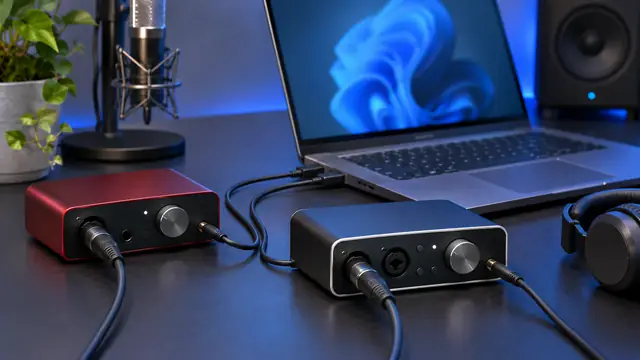 Audio settings
ASIO4ALL Device Aggregation and Clock Sync
Combine compatible Windows inputs and outputs in ASIO4ALL, check which channels your DAW can use and diagnose clock drift before a long recording.
Read guide -
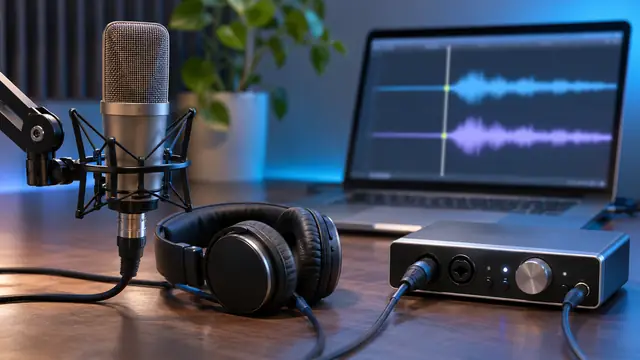 Audio settings
ASIO4ALL Latency Compensation for Recording
Use ASIO4ALL latency compensation to align recorded takes. Measure a loopback, compare reported and actual delay and confirm placement in your DAW.
Read guide -
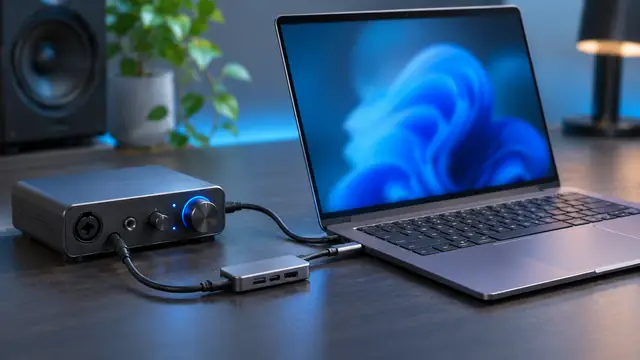 Compatibility
ASIO4ALL on Windows on Arm and ARM64 PCs
Set up ASIO4ALL 2.22 on a Windows 11 Arm PC. Check DAW architecture, USB Audio Class compatibility, and shared settings in native ARM64 applications.
Read guide -
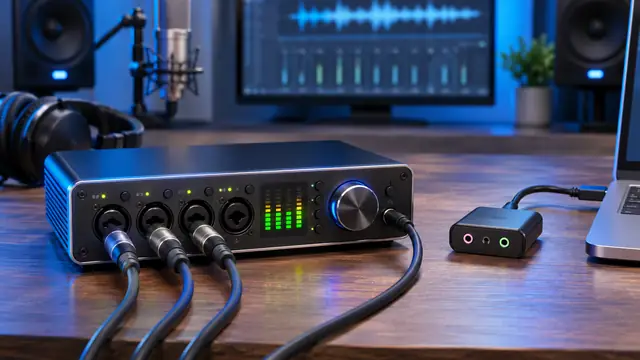 Driver basics
ASIO4ALL vs. a native ASIO driver for your interface
Compare ASIO4ALL with your interface maker’s ASIO driver on Windows. Check channel access, monitor routing and playback stability in the same project.
Read guide -
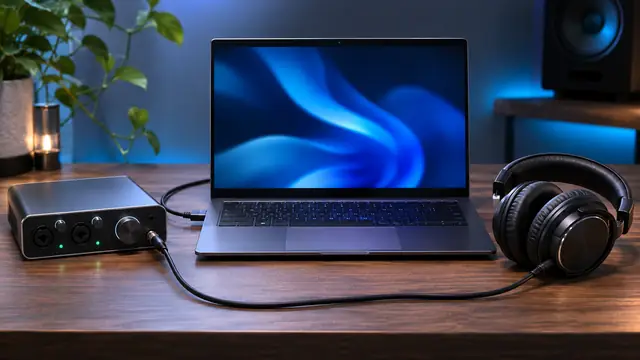 Driver basics
ASIO4ALL vs. WASAPI for Windows recording and playback
Compare ASIO4ALL with WASAPI shared and exclusive modes for recording and listening. Check what your Windows audio app supports before choosing a driver.
Read guide -
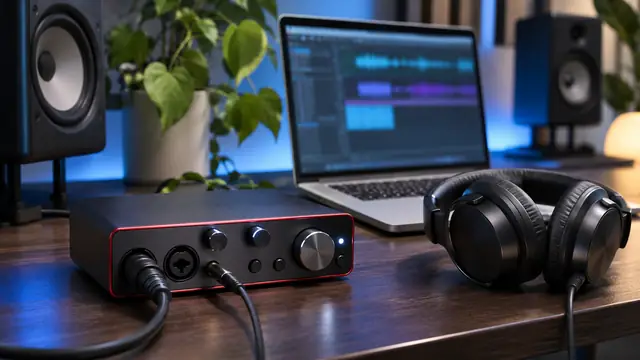 Driver basics
ASIO4ALL Review for Home Studios and Recording
Evaluate ASIO4ALL for Windows recording. See where it fits for built-in audio, which interface features may need vendor drivers, and how to compare setups.
Read guide -
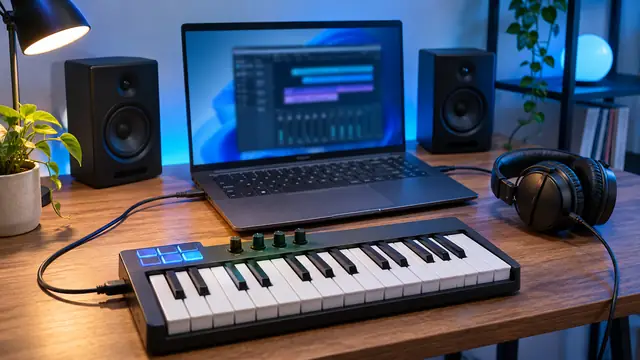 Driver basics
Is ASIO4ALL Free for Personal and Commercial Use?
Check what free ASIO4ALL use covers for home studios and paid projects, plus the publisher's separate terms for bundling, resale, and redistribution.
Read guide -
 Driver basics
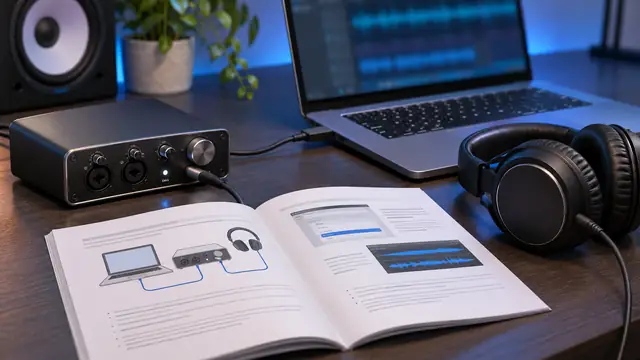
ASIO4ALL Documentation and Control Panel Settings
Find the official ASIO4ALL manual and use its sections on driver selection, device status, buffer sizes, and advanced options to troubleshoot your DAW.
Read guide -
 Releases
ASIO4ALL on GitHub and Where to Get the Installer
Verify ASIO4ALL download links, understand what a GitHub branch ZIP contains, and find the Windows installer and developer resources from the publisher.
Read guide -
 Compatibility
ASIO4ALL on Mac and the Core Audio alternative
ASIO4ALL runs on Windows. Set up your audio interface, USB microphone or Aggregate Device on Mac with Core Audio and check the routing in your recording app.
Read guide -
 Compatibility
ASIO4ALL on Linux and Native Audio Options
ASIO4ALL uses the Windows driver model. Set up a native Linux DAW with an audio interface and choose an available ALSA, JACK or PipeWire audio path.
Read guide
No guides match your search
Try a different word or show every topic again.